
Float Translate: Selection Translation, OCR, quick text actions, and custom workflows
Float Translate is a desktop tool for Selection Translation, OCR, and quick text actions. This article explains why translation and selection-based tools belong together, and how atomic capabilities, system workflows, and custom workflows cover different needs.
Float Translate began with two kinds of software that I had always felt should belong together.
One is a translation tool such as Bob, which shows a translation after you select text or capture part of the screen. The other is a quick text action tool such as PopClip, which keeps actions like search and copy close to the text you are using.
Both begin by obtaining the text in front of the user, then perform an action on it. Software categories give them different names, but they ultimately converge on the same task.
Why translation and quick text actions belong together
Translation is already a form of text processing. You might select a sentence to translate it this time, then select another sentence to search for or explain it. Opening a different application to change the operation does not provide any new text; it only adds another switch.
Building these two kinds of features also involves many of the same problems. Float Translate must read selections from other applications, respond to global shortcuts, and display a lightweight interface in the right place. After processing the text, it must return to the original application to copy, paste, or replace content.
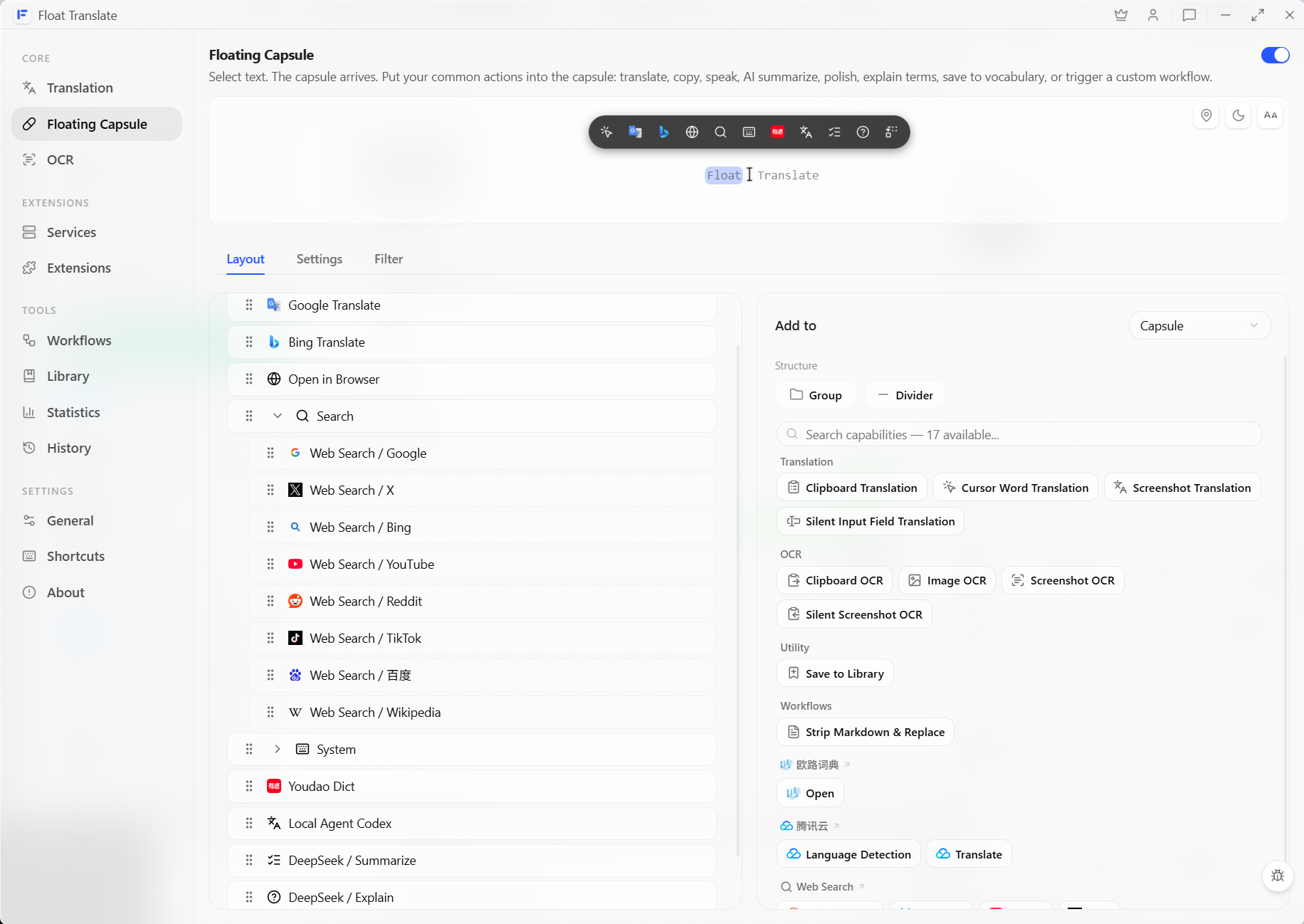
Float Translate therefore puts these actions in one entry point: the quick action bar that appears after you select text, called the Floating Capsule in the app. Translation and AI explanations can appear in the capsule, while search and extension actions use the same entry point. Keyboard-oriented users can skip the capsule and assign global shortcuts directly to the capabilities they use most.
More features should not mean more buttons
Putting translation and the capsule together solves the entry-point problem, but people still need to do many different things with text.
Given the same selection, one person may want to open the translation panel and compare services, while another may want to replace the original text immediately. Text on screen may need OCR before anything else can happen. If every sequence becomes a separate feature, the settings page quickly fills with options that only a few people use.
Float Translate breaks the process into three kinds of atomic capability.
The first determines where the text comes from. It can come from a selection or the screen, or be entered directly by the user.
The second processes the text. It might run OCR and then translate the result, or send the content to AI.
The third determines where the result goes. It can appear in a panel, be copied elsewhere, or replace the original text.
A workflow only selects and connects these capabilities. Users do not write scripts, templates, or expressions. A small set of atomic capabilities can be combined into many features that appear independent, without continuously expanding the application’s fixed menus.
Common features are already assembled
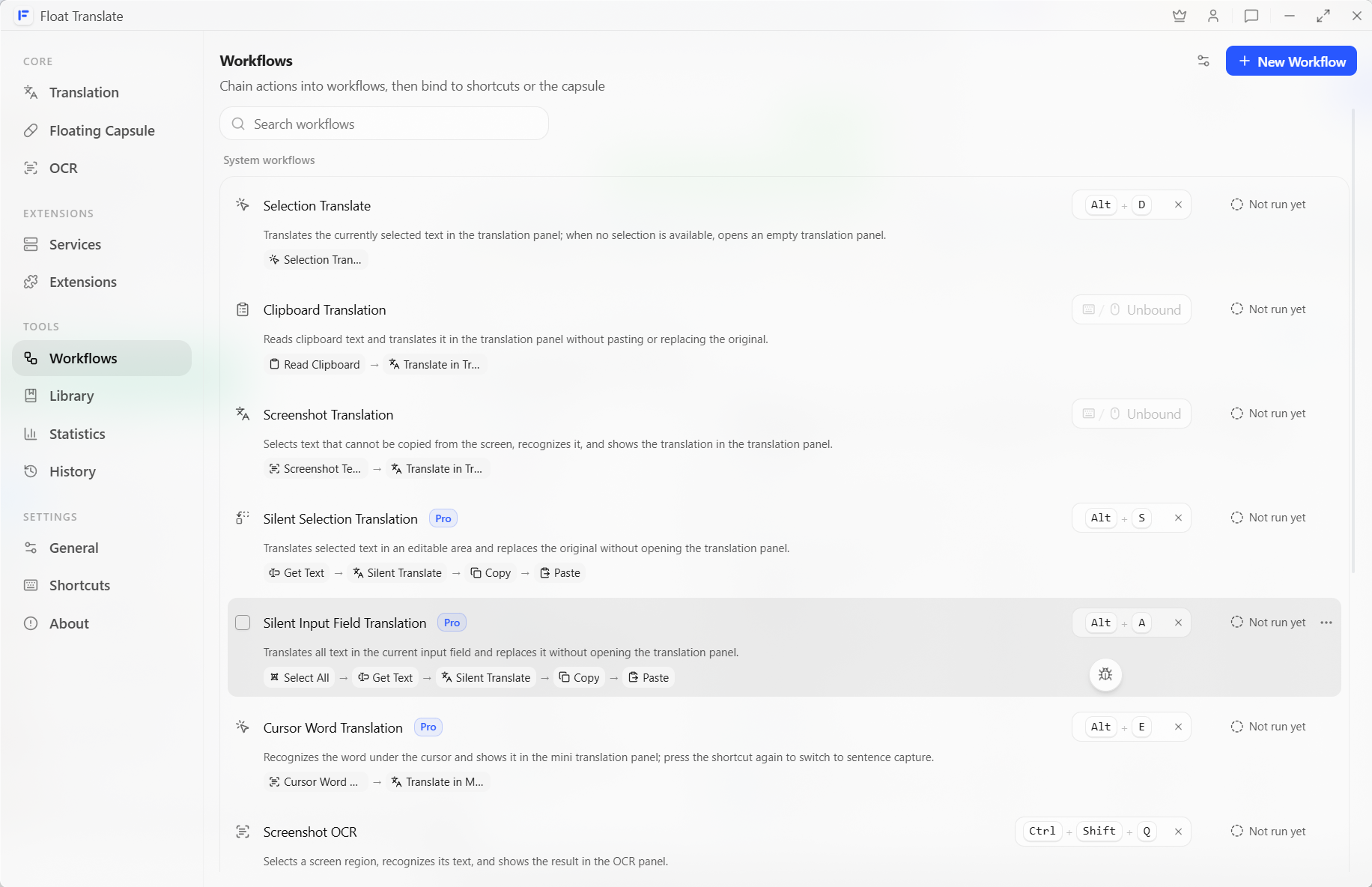
Composability does not mean starting from a blank canvas every time. Float Translate already combines frequent tasks into system workflows. Features such as Selection Translation, Screenshot Translation, and Clipboard Translation can be assigned shortcuts and used immediately.
Input Field Translation is one ready-made system workflow. It selects all text in the current input field, captures and translates it without opening a panel, then copies and pastes the translation back into the original field. You trigger one shortcut; there is no translation window to open and no need to assemble the five steps yourself.
System workflows handle common needs. Custom workflows are for your own situations. If you often work with questions displayed on screen, for example, you can connect OCR, a custom AI capability, and an output action.
Extract the question with OCR → Process it with a custom AI capability using the required instructions → Output the answer
“AI question answering” may not make sense as a fixed built-in feature, but anyone who needs it can combine the existing OCR, custom AI, and output capabilities. Change the prompt or the output destination, and the same capabilities can serve a completely different situation.
What text tasks can Float Translate handle today?
| What you want to do | Feature to use |
|---|---|
| Translate selectable text in a webpage or document | Selection Translation |
| View results from several translation services together | Multi-service comparison in the Selection Translation panel |
| Get a translation of selected text without opening a panel | Translate & Replace Selection |
| Enter or paste text and then translate it | Selection Translation panel |
| Translate the contents of the current input field | Input Field Translation |
| Translate text in the clipboard | Clipboard Translation |
| Capture a short word in an image or video frame | Screen Text Capture |
| Translate screen text that cannot be selected or copied | Screenshot Translation |
| Extract source text from the current screen | Screenshot OCR |
| Extract source text from a local image | Image OCR |
| Extract source text from an image in the clipboard | Clipboard OCR |
| Search different platforms with selected text | Search actions in the Floating Capsule |
| Quickly copy text or open a link inside it | General actions in the Floating Capsule |
| Explain, rewrite, or summarize selected text | AI capabilities or a corresponding extension |
| Clean text and replace specific content | Text-processing capabilities in a workflow |
| Repeat a personal sequence of actions | Custom workflow |
If text on screen cannot be copied, read How to translate text on screen that you cannot copy. To search several platforms with the same text, see How to search Google, Reddit, TikTok, and other platforms with selected text.
Extensions add capabilities while entry points stay consistent
Extensions can provide translation services and AI capabilities, and other text actions can use the same mechanism. An installed capability can appear in the translation panel or Floating Capsule, or become part of a workflow.
This keeps services independent from the ways people access them. You can change translation services while preserving the familiar Selection Translation path. A capability from a new extension can also join an existing workflow without waiting for the application to add another fixed feature.
Most people can continue using only system workflows. When you need more control, adjust the capsule or open the workflow editor.
This is where Float Translate differs most from an ordinary collection of features. It provides useful features out of the box while retaining the basic capabilities from which they are made. The system assembles common tasks in advance; users connect personal tasks for their own situations.